App Store Metadata Optimization: Title, Subtitle, Keywords & Description
Master App Store metadata optimization. Learn character limits, keyword placement strategies, and best practices for your title, subtitle, keyword field, description, and promotional text.
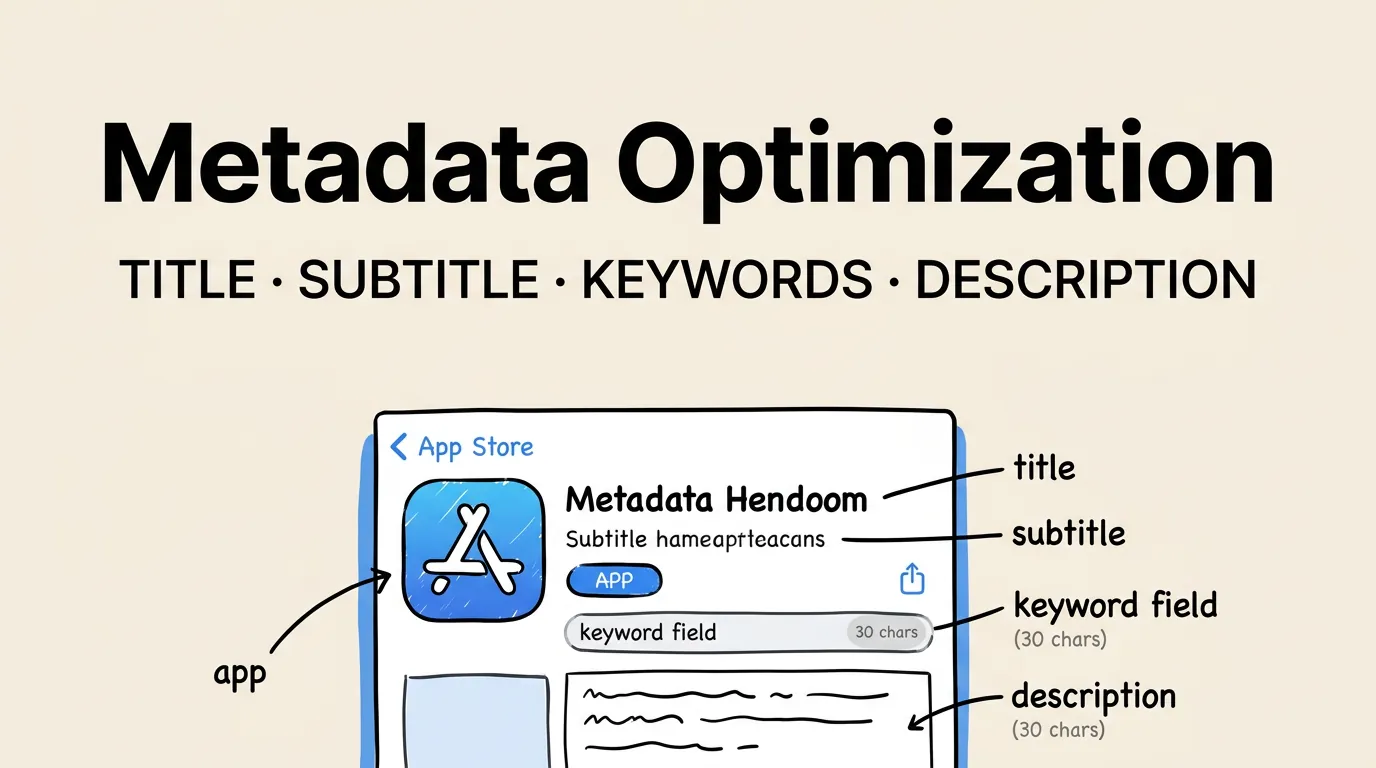
Every field in App Store Connect is a lever. Some move your search rankings. Some move your conversion rate. Some do both. And some do surprisingly little, despite developers spending hours on them.
The biggest metadata mistake is treating all fields equally. Your title is not the same as your description. Your subtitle is not the same as your promotional text. Each field has different character limits, different impacts on search rankings, and different effects on user behavior.
This guide breaks down every metadata field: what it does, how Apple’s algorithm uses it, and how to optimize it for maximum impact. For the keyword research that feeds into this, read our keyword research guide.
The Metadata Hierarchy
Not all metadata fields carry equal weight. Here is the hierarchy from most to least impactful for search rankings:
| Field | Character Limit | Search Weight | Visibility | Editable Without Update |
|---|---|---|---|---|
| App Title | 30 | Highest | Always visible | No (requires submission) |
| Subtitle | 30 | High | Visible in search results | No (requires submission) |
| Keyword Field | 100 | High | Hidden from users | No (requires submission) |
| Screenshot OCR Text | Varies | Moderate | Visible in screenshots | No (requires submission) |
| IAP Names | 30 each | Low-Moderate | Visible on product page | No |
| Description | 4,000 | Not indexed | Visible on product page | No (requires submission) |
| Promotional Text | 170 | Not indexed | Above description | Yes (anytime) |
| What’s New | 4,000 | Not indexed | Visible on product page | Per update only |
The critical insight: your description is NOT indexed for search. Many developers spend hours crafting keyword-rich descriptions thinking it helps rankings. It does not. The description is purely a conversion tool.
App Title: 30 Characters That Define Everything
Your title is the most important metadata field. It carries the heaviest search weight, it is the first text users read, and it establishes your brand identity in the App Store.
Balancing Brand vs. Keywords
Every character in your title faces a tension between brand recognition and keyword targeting. Here are the common approaches:
| Strategy | Format | Example | When to Use |
|---|---|---|---|
| Brand-first | Brand - Keyword | ”Notion - Notes & Docs” | Established brand |
| Keyword-first | Keyword: Brand | ”Meditation Timer: Calm” | New app, need discovery |
| Brand only | Brand | ”Spotify” | Massive brand recognition |
| Hybrid | Brand: Keyword Phrase | ”YNAB: Budget & Finance” | Balanced approach |
For indie developers: Lead with your brand name followed by your primary keyword. “AppName - Core Feature” or “AppName: Primary Keyword” are both effective patterns.
Character optimization tips:
- Use ”&” instead of “and” (saves 2 characters)
- Use common abbreviations where clear (e.g., “Mgr” for “Manager” in niche B2B apps is risky, but “AI” for “Artificial Intelligence” is universally understood)
- Every character matters. “Budget Tracker & Planner” (24 chars) is better than “Budget Tracking and Planning App” (31 chars — would be truncated)
Title Mistakes That Hurt Rankings
- Generic titles - “My App” tells Apple nothing about relevance
- Keyword stuffing - “Budget Money Finance Tracker Free” looks spammy and Apple may reject it
- Special characters for decoration - “Budget Tracker” wastes characters and looks unprofessional
- Changing titles too frequently - Confuses users and can temporarily hurt rankings
- Exceeding the limit - Apple truncates at 30 characters, and truncated titles look broken
Subtitle: 30 Characters for Conversion and Keywords
The subtitle appears directly below your title in search results and on your product page. It is indexed for search and heavily influences conversion.
The subtitle’s dual role:
- Search: Target your second-tier keywords (the ones that did not fit in the title)
- Conversion: Communicate your value proposition in one line
| Good Subtitles | Why They Work |
|---|---|
| ”Plan, Track & Save Money” | Clear benefit + keywords |
| ”AI-Powered Photo Enhancement” | Differentiator + keyword |
| ”Sleep Sounds & Meditation” | Feature keywords + clarity |
| ”Your Personal Workout Coach” | Emotional appeal + keyword |
| Bad Subtitles | Why They Fail |
|---|---|
| ”The Best App Ever Made” | No keywords, no specifics |
| ”Version 3.0 Now Available” | Wasted space, not indexed meaningfully |
| ”Free Download” | Every free app is a free download |
| ”Winner of Best App Award 2025” | Wastes characters, low keyword value |
Pro tip: If your title is brand-focused (“Headspace”), use the subtitle for your primary keyword phrase (“Meditation & Sleep”). If your title already has a keyword (“BudgetTracker - Expense Log”), use the subtitle for a different keyword angle (“Monthly Spending Planner”).
Keyword Field: 100 Characters of Hidden Power
The keyword field is invisible to users but fully indexed by Apple’s search algorithm. It is your most flexible metadata field and the place where strategic thinking pays off the most.
Keyword Field Rules
| Rule | Do This | Not This |
|---|---|---|
| Separators | budget,tracker,expense | budget, tracker, expense |
| Singular/plural | tracker | tracker,trackers |
| Word repetition | Use each word once | budget tracker,budget planner |
| Title/subtitle words | Omit them | Re-include them |
| Competitor brands | Never include | mint,ynab,quicken |
| Numbers | Include if relevant | Skip if just filler |
Maximizing Coverage
The art of keyword optimization is fitting the maximum number of relevant keywords into 100 characters. Think of it like a puzzle.
Step 1: List all your target keywords that are NOT in your title or subtitle.
Step 2: Break compound keywords into individual words. Apple’s algorithm combines words, so “personal finance” does not need to be entered as a phrase. Enter “personal” and “finance” separately.
Step 3: Remove any words that overlap with your title or subtitle.
Step 4: Arrange remaining words in a comma-separated list, shortest words first (to maximize the number of keywords you can fit).
Step 5: Count characters. If under 100, add more relevant keywords. If over, cut the lowest-priority terms.
Example optimization:
Target keywords: budget tracker, expense manager, money planner, personal finance, spending log, bill reminder, savings goal, debt payoff, financial wellness
Title: “BudgetPal - Expense Tracker” (already indexed: budget, pal, expense, tracker) Subtitle: “Personal Finance Manager” (already indexed: personal, finance, manager)
Remaining words needed: money, planner, spending, log, bill, reminder, savings, goal, debt, payoff, financial, wellness
Keyword field: money,planner,spending,log,bill,reminder,savings,goal,debt,payoff,financial,wellness,income,receipt,category,monthly
That is 98 characters covering 16 additional keywords. Combined with title and subtitle, you are indexed for 22+ terms.
Description: 4,000 Characters for Conversion (Not Search)
Repeat: the description is NOT indexed for App Store search. Do not waste it on keyword stuffing.
The description is a conversion tool. Its job is to convince users who have already seen your screenshots and are still considering whether to install.
What works:
- First three lines are crucial (visible without tapping “more”)
- Bullet points for scannable feature lists
- Benefit-focused language (“Save 2 hours per week” vs. “Has a scheduling feature”)
- Social proof (“Trusted by 100,000 users”, “Featured by Apple”)
- Clear differentiation (what makes you different from alternatives)
What does not work:
- Walls of text
- Repeating your keyword list
- Technical jargon
- Lengthy version histories
- Paragraphs about your company story
Description Template
[One-line value proposition - what problem you solve]

KEY FEATURES:
- [Benefit 1] - [Brief explanation]
- [Benefit 2] - [Brief explanation]
- [Benefit 3] - [Brief explanation]
- [Benefit 4] - [Brief explanation]
- [Benefit 5] - [Brief explanation]

[Social proof paragraph - awards, press mentions, user count]

[Differentiation paragraph - why choose this over alternatives]

SUBSCRIPTION INFO (if applicable):
[Pricing, trial info, renewal terms]
Promotional Text: 170 Characters, No Review Required
The promotional text field appears above your description and can be changed at any time without submitting a new app version. This makes it your most agile metadata field.
Best uses for promotional text:
| Use Case | Example |
|---|---|
| Seasonal messaging | ”New Year, new habits. Start your fitness journey today!” |
| Feature launches | ”Now with AI-powered budgeting. Try it free.” |
| Social proof updates | ”Just hit 500,000 happy users. Join them!” |
| Limited offers | ”50% off Premium through March 31.” |
| Event tie-ins | ”WWDC special: exclusive app themes available now.” |
Important: Promotional text is NOT indexed for search. Do not waste it on keywords. Use it purely for conversion.
What’s New: An Underused Conversion Tool
The “What’s New” section appears prominently for users who already have your app installed and for potential downloaders viewing your product page. Most developers treat it as a changelog. The best developers use it as a marketing channel.
Changelog approach (common but weak):
- Fixed bug with login
- Performance improvements
- Updated SDK
Marketing approach (much stronger):
Big update: We've completely rebuilt the dashboard!

- New weekly insights show exactly where your money goes
- Dark mode that actually looks good
- 3x faster loading on all screens

We read every review. This update is built on YOUR feedback. Loving the app? A quick rating helps us keep building.
The marketing approach humanizes your brand, highlights user-facing improvements, and subtly encourages ratings. It also signals to potential new users that the app is actively maintained and responsive to feedback.
Screenshot Captions as Metadata
Since Apple’s OCR reads text from your screenshots and indexes it for search, your screenshot captions are effectively another metadata field. They are just one with no hard character limit.
How to optimize:
- Include relevant keywords in every caption naturally
- Front-load the most important keywords (they carry slightly more weight)
- Use clear, readable fonts (OCR needs to be able to extract the text)
- Avoid all-caps for long captions (harder for OCR to parse accurately)
- Make sure captions serve users first, keywords second
For a complete OCR optimization strategy, read our Apple OCR screenshot strategy guide. For caption writing techniques, see our screenshot captions guide.
In-App Purchase Names and Descriptions
IAP names and descriptions are indexed for search, though with less weight than your title or keyword field. If your app has in-app purchases, optimize their names with relevant keywords.
| IAP Name | Keyword Value |
|---|---|
| ”Premium Subscription” | Low (generic) |
| “Pro Budget Analytics” | Higher (includes “budget” and “analytics”) |
| “Annual Meal Planner” | Higher (includes “meal” and “planner”) |
| “Unlock All Filters” | Moderate (includes “filters”) |
Do not make IAP names unreadable with keyword stuffing. They appear on your product page and in purchase dialogs. But there is usually room to include one or two relevant keywords naturally.
Putting It All Together: The Metadata Audit
Run this audit on your current listing:
- Title: Does it include your #1 keyword? Is it under 30 characters? Does it clearly communicate what your app does?
- Subtitle: Does it target different keywords than the title? Does it communicate a clear benefit?
- Keyword field: Are you using all 100 characters? Are you repeating any words from the title or subtitle? Are you using singular forms?
- Description: Is it conversion-focused? Are the first three lines compelling? Is it scannable?
- Promotional text: Are you using it? Is it current?
- Screenshot captions: Do they include relevant keywords? Are they readable for both users and OCR?
- IAP names: Do they include relevant keywords naturally?
For a comprehensive pre-submission checklist, see our listing optimization checklist.
Frequently Asked Questions
Is the App Store description indexed for search? No. Apple does not index the description for search rankings. This is one of the most common ASO misconceptions. Your description is purely a conversion tool. Focus your keyword efforts on the title, subtitle, keyword field, and screenshot captions (via OCR).
Can I change my app title without submitting an update? No. Title, subtitle, and keyword field changes all require a new app version submission and Apple review. Only the promotional text field can be updated at any time without a new submission.
Should I put my brand name in the keyword field? No. Your brand name is already in your title, which means it is already indexed. Putting it in the keyword field wastes characters. The one exception: if you have a common misspelling of your brand name that users search for, you might include that.
How often should I update my metadata? Every 4-8 weeks is ideal. This gives you enough time to measure the impact of each change. Use each app update as an opportunity to refine your keyword strategy based on ranking data and competitive changes.
Does Apple penalize keyword stuffing? Yes. Apple’s review team may reject app updates with titles or subtitles that appear to be keyword-stuffed rather than natural language. The keyword field is more lenient since it is hidden from users, but even there, including irrelevant keywords can dilute your relevance for the terms that actually matter.