App Store Listing Optimization Checklist: 30 Items Before You Submit
A comprehensive 30-item checklist for optimizing your App Store listing before submission. Covers metadata, visual assets, technical requirements, and launch-day preparation.
You have spent months building your app. The code works, the design is polished, and you are ready to submit to the App Store. But before you click that submit button, your listing needs to be just as polished as your app.
Most developers rush through the App Store Connect submission process. They fill in fields as fast as possible, upload the first screenshots they can grab, and submit. Then they wonder why their app gets 12 downloads in the first week.
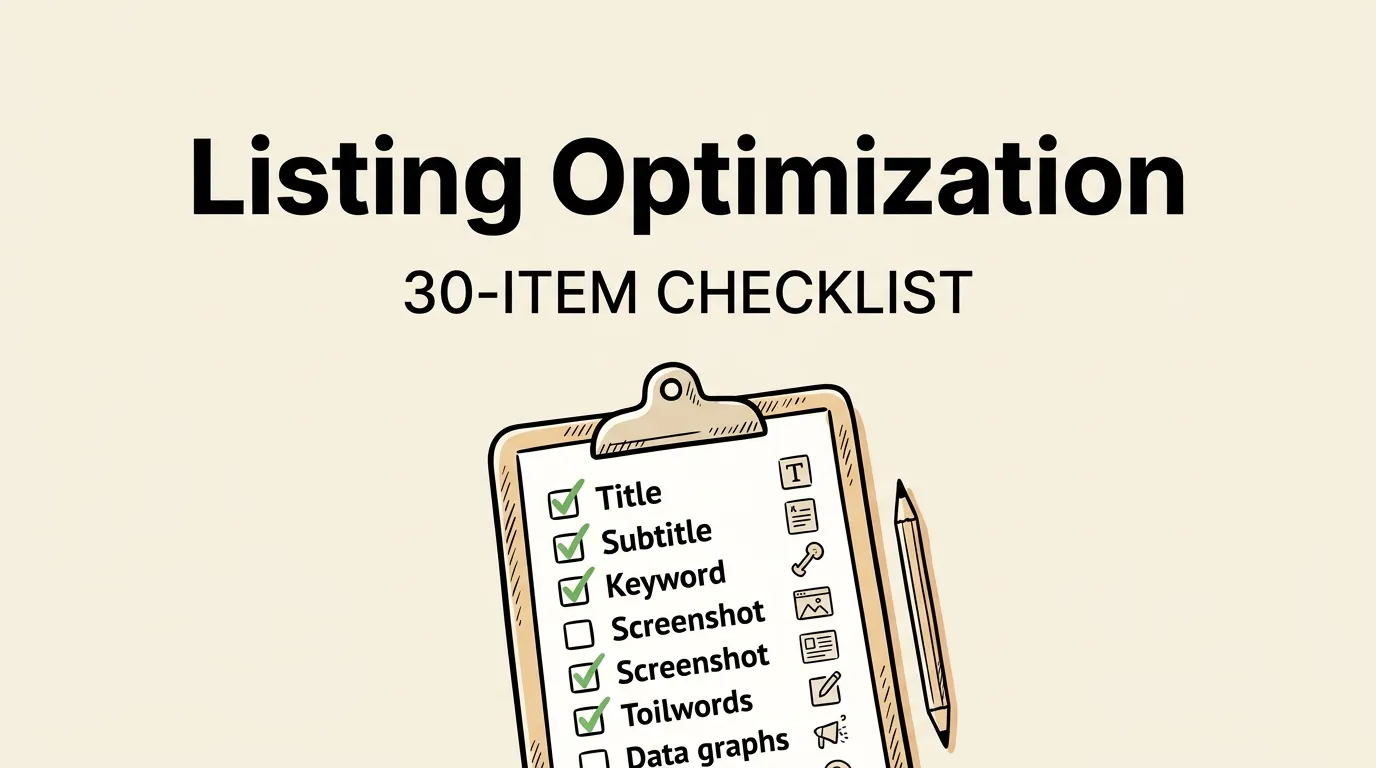
This checklist covers 30 specific items to review before every submission. Not generic advice, but concrete checks with clear pass/fail criteria. Print it out, work through it, and submit a listing that is optimized for both discovery and conversion. For the strategic foundation behind these items, read our complete ASO guide.
Metadata Checklist (Items 1-10)
1. App Title Contains Primary Keyword
Check: Does your title include the single most important keyword for your app, in addition to your brand name?
Why it matters: The title has the highest keyword weight of any metadata field. An app called “BudgetPal” will rank lower for “budget tracker” than one called “BudgetPal - Budget Tracker.”
Common mistake: Using only the brand name with no keywords, or using a clever name that gives no hint about what the app does.
2. App Title Is Under 30 Characters
Check: Count the characters. Is it 30 or fewer?
Why it matters: Apple truncates titles that exceed 30 characters. A truncated title looks broken and unprofessional in search results.
Common mistake: Writing a descriptive phrase instead of a concise title. “The Ultimate Budget Tracking and Personal Finance App” is 52 characters and will be cut off.
3. Subtitle Targets Different Keywords Than Title
Check: Do the words in your subtitle differ from the words in your title?
Why it matters: Apple already indexes words from your title. Repeating them in the subtitle wastes valuable keyword space. The subtitle should target your second-tier keywords.
Common mistake: Title: “BudgetPal - Budget Tracker” / Subtitle: “Budget Tracking Made Easy” — “budget” and “track” appear in both, wasting subtitle characters.
4. Subtitle Communicates Clear Value
Check: If a user read only your subtitle, would they understand what your app does and why it is valuable?
Why it matters: The subtitle appears directly below your title in search results. It is a conversion element as much as a keyword element.
Common mistake: Subtitles that are keyword-stuffed but meaningless to users: “Finance Money Savings Bills Free.”
5. Keyword Field Uses All 100 Characters
Check: Count the characters in your keyword field. Are you using 95-100?
Why it matters: Every unused character is a keyword you are not targeting. Most developers leave 20-30 characters unused.
Common mistake: Using spaces after commas (wasting characters) or including words already in the title/subtitle (redundant).
| Character Waste | Characters Lost |
|---|---|
| Space after each comma (10 keywords) | 10 characters |
| Repeating 3 title words | 15-25 characters |
| Using plural forms | 5-10 characters |
| Including “app” or “free” | 3-4 characters |
| Total potential waste | 33-49 characters |
6. No Keywords Repeated Across Title, Subtitle, and Keyword Field
Check: Create a list of every unique word across all three fields. Are there any duplicates?
Why it matters: Duplicates do not improve rankings. They only waste space. If “budget” is in your title, it does not need to be in your keyword field.
7. Keywords Use Singular Forms Only
Check: Are all keywords in singular form (e.g., “tracker” not “trackers”)?
Why it matters: Apple’s algorithm indexes both singular and plural forms from the singular. Writing “trackers” wastes an “s” character and does not provide any additional search coverage.
8. Description First Three Lines Are Compelling
Check: Read only the first three lines of your description (the part visible without tapping “more”). Do they clearly communicate your primary value proposition?
Why it matters: Most users never tap “more.” Those first three lines are your only chance to convince them through the description.
Common mistake: Starting with “Welcome to [App Name]!” which wastes the most valuable description real estate.
9. Promotional Text Is Active and Current
Check: Have you written promotional text? Is it current (not referencing a past event or expired offer)?
Why it matters: Promotional text is visible above the description and can be updated without a new app submission. It is your most agile conversion tool.
Common mistake: Leaving promotional text empty, or having “Happy Holidays!” text still active in March.
10. Description Includes No Keyword Stuffing
Check: Read your description aloud. Does it sound natural, or does it read like a list of search terms?
Why it matters: The description is NOT indexed for search. Keyword-stuffing it hurts conversion (it reads poorly) without helping discovery.
For detailed metadata guidance, see our metadata optimization guide.
Visual Assets Checklist (Items 11-20)
11. Screenshots Uploaded for All Required Device Sizes
Check: Have you uploaded screenshots for iPhone 6.7” (required) and optionally for iPhone 6.9”, iPad, and any other device sizes you support?
Why it matters: Missing screenshots for a required device size can delay or prevent your app from appearing properly in search results on those devices.
For exact size requirements, reference our screenshot sizes guide.
12. First Screenshot Highlights the #1 Benefit
Check: Does your first screenshot communicate your single most compelling selling point?
Why it matters: The first screenshot is visible in search results without tapping. It is the most viewed screenshot by a factor of 3-5x. It should not show a splash screen or login page.
Common mistake: Using a welcome screen, login page, or generic “introducing our app” as the first screenshot.
13. All Screenshots Have Clear Captions
Check: Does every screenshot have a readable caption that communicates a benefit?
Why it matters: Captions drive both conversion (users understand the feature) and search (Apple’s OCR reads the text). Screenshots without captions miss both opportunities.
| Caption Quality | Conversion Impact | OCR Impact |
|---|---|---|
| No caption | Baseline | None |
| Generic (“Welcome!”) | Minimal lift | Minimal |
| Benefit-focused | +15-25% | Moderate |
| Benefit + keyword optimized | +20-30% | High |
14. Screenshot Captions Contain Target Keywords
Check: Do your screenshot captions include relevant keywords that are not already covered by your title, subtitle, and keyword field?
Why it matters: Since Apple’s OCR indexes screenshot text, captions are bonus keyword space. Use them to expand your keyword coverage. See our OCR strategy guide for details.
15. Screenshots Use Consistent Design
Check: Do all screenshots share a consistent color palette, typography, and layout style?
Why it matters: Inconsistent screenshots look unprofessional and signal a poorly designed app. Consistency builds trust and encourages users to scroll through all screenshots.
16. Screenshots Are High Resolution and Clear
Check: Are all screenshots crisp at full resolution? Do they meet the exact pixel requirements?
Why it matters: Blurry or incorrectly sized screenshots are immediately noticed and dramatically hurt perceived quality.
17. App Icon Is Simple and Distinctive
Check: Is your icon recognizable at 60x60 pixels? Does it stand out from the blue/purple majority?
Why it matters: The icon is the first element processed in search results. Complex icons are unrecognizable at small sizes, and generic icons blend in with the crowd.
18. App Preview Video (If Used) Has Strong First 3 Seconds
Check: If you have an app preview video, does the first 3 seconds clearly show your app’s value? Does it work without sound (auto-play is muted)?
Why it matters: Preview videos auto-play muted in search results. If the first 3 seconds are a logo animation or loading screen, you have wasted the opportunity.
19. Screenshots Work in Both Light and Dark Mode
Check: View your screenshots on a device in both light and dark mode. Do they look good in both contexts?
Why it matters: A significant portion of users run dark mode. Screenshots designed for light mode may have poor contrast or look jarring on dark backgrounds.
20. All 10 Screenshot Slots Are Used
Check: Have you uploaded 10 screenshots?
Why it matters: More screenshots mean more chances to convert users and more OCR keyword surface area. The marginal effort of screenshots 7-10 is low, but they add incremental value.
Technical Checklist (Items 21-25)
21. Primary Category Is Strategically Selected
Check: Is your app in the category where it is most likely to rank well, not just the most “accurate” category?
Why it matters: Category selection affects which users see your app in browse results and influences personalized search rankings. Being #5 in a smaller category may be better than #200 in a larger one.
22. Age Rating Is Accurate
Check: Have you correctly answered Apple’s age rating questionnaire? Is the resulting rating as low as it accurately can be?
Why it matters: An unnecessarily high age rating (17+) limits your audience. An inaccurately low rating risks App Review rejection.
23. Privacy Policy URL Is Valid and Accessible
Check: Click the privacy policy URL in your listing. Does it load? Is the content appropriate?
Why it matters: A broken privacy policy URL can delay review and looks unprofessional to users who check.
24. Support URL Is Valid and Helpful
Check: Click the support URL. Does it load? Does it actually help users get support?
Why it matters: A broken or generic support URL hurts user trust and can lead to more negative reviews from frustrated users.
25. App Size Is Reasonable
Check: Is your app size appropriate for its category? Is it under 200MB for cellular download?
Why it matters: Apps over 200MB cannot be downloaded over cellular data by default. This significantly limits impulse downloads. If your app is large, consider what can be loaded on-demand.
| Size Range | User Perception |
|---|---|
| Under 50MB | No friction |
| 50-200MB | Minimal friction |
| 200MB-1GB | Cannot download on cellular (without user override) |
| Over 1GB | Significant friction, storage concerns |
Launch Day Checklist (Items 26-30)
26. Apple Search Ads Campaign Is Ready
Check: Have you prepared a Search Ads campaign to launch alongside your app?
Why it matters: Search Ads drive initial download velocity, which boosts organic rankings. Having a campaign ready to go on day one gives you a momentum advantage.
27. Rating Prompt Is Implemented at the Right Moment
Check: Have you implemented SKStoreReviewController.requestReview() at an appropriate moment (after a positive experience, not on first launch)?
Why it matters: Early ratings set the tone. Getting a few 5-star ratings in the first week is critical. Prompting at the wrong time risks 1-star ratings from confused new users.
For the full rating strategy, see our ratings and reviews guide.
28. Analytics Are Configured
Check: Are App Store Connect analytics enabled? Are you tracking impressions, page views, and conversion rate?
Why it matters: Without data, you cannot improve. You need a baseline measurement from day one to evaluate the impact of future optimizations.
29. What’s New Text Is Written for Marketing, Not Changelog
Check: Does your “What’s New” text highlight user-facing benefits rather than technical changes?
Why it matters: “What’s New” is visible on your product page and in the Updates tab. “Fixed bug #4523” tells users nothing. “Lightning-fast loading. New dark mode. More customization.” tells them everything.
30. Cross-Locale Keywords Are Set (If Applicable)
Check: If you target the US market, have you also set keywords for English (UK) and Spanish (Mexico) to take advantage of cross-locale indexing?
Why it matters: Cross-locale keyword indexing effectively doubles your keyword capacity. Leaving these locale keyword fields empty means missing out on 100+ additional characters of keyword space.
For detailed cross-locale strategies, see our keyword research guide.
The Pre-Submission Scoring Sheet
Use this table to score your listing before every submission. Give each section a pass/fail and do not submit until all sections pass:
| Section | Items | Must-Pass Items | Your Score |
|---|---|---|---|
| Metadata (1-10) | 10 | Items 1, 2, 5, 6 are critical | ___ / 10 |
| Visual Assets (11-20) | 10 | Items 11, 12, 13 are critical | ___ / 10 |
| Technical (21-25) | 5 | Items 21, 23 are critical | ___ / 5 |
| Launch Day (26-30) | 5 | Items 27, 28 are critical | ___ / 5 |
| Total | 30 | ___ / 30 |
Target: 25/30 or higher for a well-optimized listing. 30/30 for a competitive category where every edge matters.
After Submission: The Optimization Loop
Submitting your listing is not the end. It is the beginning of an ongoing optimization cycle:
- Week 1-2: Collect baseline data (impressions, conversion rate, keyword rankings)
- Week 3-4: Identify underperforming areas (low conversion? low impressions? low rankings?)
- Week 5-6: Plan optimizations based on data
- Week 7-8: Submit updated listing with improvements
- Repeat: Every 4-8 weeks
The apps that rank well are not the ones that submit a perfect listing once. They are the ones that iterate, measure, and improve consistently over time. This checklist is your starting point for each iteration.
Frequently Asked Questions
Should I check all 30 items for every app update, or just major releases? For major releases or launches, check all 30 items. For minor bug-fix updates, focus on items that have changed: metadata (if you updated it), screenshots (if new), and “What’s New” text (always). The technical and launch day items only need checking for significant releases.
What if I cannot pass all 30 items before my deadline? Prioritize the must-pass items marked in the scoring sheet. Items 1, 2, 5, 12, 13, and 27 are the highest-impact items. If you can only optimize 6 things, optimize those. Then plan to address the remaining items in your next update cycle.
How long does this checklist take to work through? For a brand-new listing, expect 4-8 hours to work through all 30 items properly (most of that time is writing metadata and designing screenshots). For subsequent updates where you are checking and tweaking, it takes 1-2 hours. The time investment pays for itself many times over in improved rankings and conversion.
Should I use this checklist for App Store updates or just initial launches? Both. Every update is an opportunity to improve your listing. Even if you are only fixing bugs, you can refine your keywords, update your promotional text, and improve your “What’s New” copy. The checklist keeps you from missing these opportunities.
Can I automate any of these checks? Some ASO tools (AppTweak, ASOdesk) include listing audit features that check metadata optimization automatically. Screenshot tools like Screenshot Lab handle visual asset optimization. But strategic decisions (which keywords to target, what caption to write, which category to choose) still require human judgment. Use tools to automate the checks, but own the strategy.