How Apple's OCR Changes Your App Store Screenshot Strategy
Apple scans text in your screenshots and uses it for keyword indexing. Here's how it works, why it matters, and how to optimize your captions for both users and the algorithm.
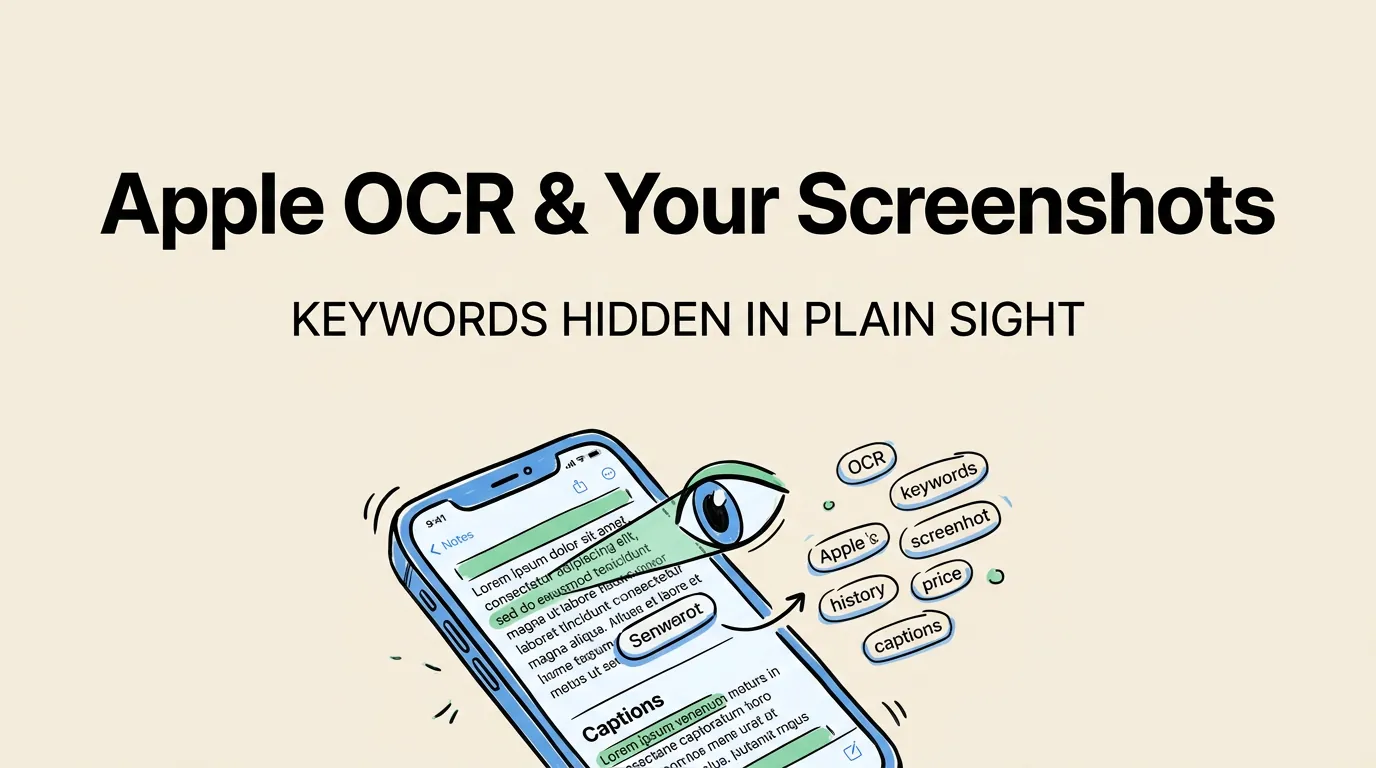
Since 2024, Apple reads the text in your App Store screenshots. Every word. Using OCR.
Those words get added to your app’s search keyword index, right alongside your title, subtitle, and keyword field. Which means your screenshot captions aren’t just marketing copy anymore. They’re search keywords.
Most developers don’t know this. The ones who do have a real advantage. If you haven’t nailed the basics yet, start with our screenshot creation guide.
How It Works
The pipeline is simple:
- You upload screenshots to App Store Connect.
- Apple’s Vision framework scans each screenshot for visible text.
- The extracted text is tokenized into words and phrases.
- Those tokens are added to your app’s search keyword index.
- Users searching for those terms can now find your app.
It’s automatic. No opt-in. No configuration. Every screenshot you upload gets scanned.
Why This Is a Big Deal
More keyword real estate
Before OCR, your keyword space was tight:
| Field | Limit |
|---|---|
| App name | 30 characters |
| Subtitle | 30 characters |
| Keyword field | 100 characters |
| Total | 160 characters |
With OCR, your screenshots add hundreds of additional characters. Eight screenshots with 5-word captions? That’s roughly 40 extra keywords. You’ve more than doubled your indexable keyword count.
Almost nobody optimizes for this
We looked at the top 100 apps. 82% have captions on their screenshots. But only about 34% appear to deliberately include search keywords in those captions. The other 48% use generic marketing language (“Beautiful Design,” “Easy to Use”) that doesn’t target specific search terms.
If you optimize your captions for both humans and OCR, you’re ahead of two-thirds of the competition.
The Double-Counting Effect
When a keyword appears in both your metadata (title/subtitle/keyword field) AND your screenshots, the signal is stronger. Apple’s algorithm treats it as reinforcement.
Here’s a concrete example for a habit tracking app:
Without OCR optimization:
- Title: “HabitFlow”
- Subtitle: “Build Better Habits”
- Keywords: “habit tracker, daily routine, streak”
- Screenshot captions: “Beautiful Design,” “Stay Motivated,” “Premium Features”
With OCR optimization:
- Title: “HabitFlow”
- Subtitle: “Build Better Habits”
- Keywords: “habit tracker, daily routine, streak”
- Screenshot captions: “Track Daily Habits,” “Never Break Your Streak,” “Smart Routine Reminders”
Same app. Same metadata. But the optimized captions reinforce “habit,” “track,” “daily,” “streak,” and “routine,” while also adding new terms like “smart” and “reminders.”
How to Optimize
1. Put target keywords in your captions
Write captions that work for both humans and the algorithm:
- If you target “habit tracker,” write “Track Your Daily Habits” instead of “Build Better Routines”
- Both communicate the same benefit. Only the first includes the keyword.
2. Use different keywords per screenshot
Don’t repeat the same terms across all captions. Each screenshot is a chance to target a different keyword cluster.
| Screenshot | Caption | Keywords Added |
|---|---|---|
| #1 | ”Get Fit in 15 Minutes” | fit, minutes |
| #2 | ”Smart Workout Plans” | workout, plans |
| #3 | ”Track Every Rep and Set” | track, rep, set |
| #4 | ”Progress Charts That Motivate” | progress, charts |
| #5 | ”Apple Watch Integration” | Apple Watch |
| #6 | ”Home Screen Widget” | widget, home screen |
Six screenshots, 12 unique keywords. All while communicating real features to real users.
3. Make text OCR-readable
Apple’s OCR is good but not perfect. Help it:
- High contrast. White text on dark backgrounds, or dark text on light backgrounds.
- Clean fonts. Sans-serif (SF Pro, Helvetica, Inter) works better than script or decorative fonts. Our design principles guide covers font sizing in detail.
- 48px minimum at export resolution (1260x2736). Smaller text may not be detected.
- Don’t place text over busy gradients. If contrast varies across the caption, parts may not be extracted.
4. Don’t stuff keywords
Apple can detect it. Apps caught stuffing have reported ranking drops for the stuffed keywords. Signs that trigger penalties:
- Same keyword repeated across multiple captions
- Captions that read like keyword lists
- Keywords unrelated to what the screenshot shows
- Tiny or near-invisible text
Write like a human. If a caption sounds weird when you read it out loud, rewrite it.
5. Localize your captions = localize your keywords
When you localize screenshots for different markets, the OCR scans the localized text. Japanese captions add Japanese keywords. German captions add German keywords. Each language expands your keyword coverage in that market.
This is where AI localization tools shine. They don’t just translate your English captions. They rewrite them with keywords that users in each market search for. The difference between “翻訳” (literal translation) and actual keyword optimization in each market is huge.
Measuring the Impact
How to check if OCR keywords are working
- Upload screenshots with specific keywords in captions.
- Wait 24-48 hours for Apple’s indexing.
- Search for those keywords in the App Store.
- Check if your app appears.
Timeline
- 24-48 hours: OCR scanning and initial indexing
- 1-2 weeks: Rankings start shifting
- 4-6 weeks: Full impact visible
Tools for tracking
- App Store Connect Analytics: Check keyword rankings
- Sensor Tower / AppTweak: Track ranking changes after screenshot updates
- Screenshot Lab: AI competitor analysis shows which keywords competitors use in their captions — see how it compares to other tools
Common Questions
Does Apple really do this? Yes. OCR on App Store screenshots has been active since 2024. Confirmed through ASO testing and keyword tracking by multiple developers and ASO tools.
Can I get penalized? Only for keyword stuffing. Natural, readable captions that include relevant keywords are fine. Apple penalizes obvious gaming: invisible text, keyword lists disguised as captions, repetition.
Do all words get indexed? Most readable text is extracted. Very small text (under ~40px), text over cluttered backgrounds, and decorative fonts may not be detected reliably.
Does this work in all languages? Yes. The OCR handles Japanese, Korean, Chinese, Arabic, and other scripts. Not just Latin characters.
Should I update my existing screenshots? If your current captions are generic (“Beautiful Design,” “Easy to Use”), updating them with keyword-rich alternatives is one of the highest-impact ASO changes you can make. See what the top 100 apps actually do for inspiration. If your captions already include relevant keywords, you’re probably already benefiting.
How many extra keywords can I get? With 6-8 screenshots and 4-6 word captions, roughly 30-50 unique keywords beyond your 160-character metadata limit.