App Store Screenshot Templates: Free Downloads + AI Alternative
Free Figma and Canva screenshot templates for the App Store, plus how AI tools eliminate the need for templates entirely.
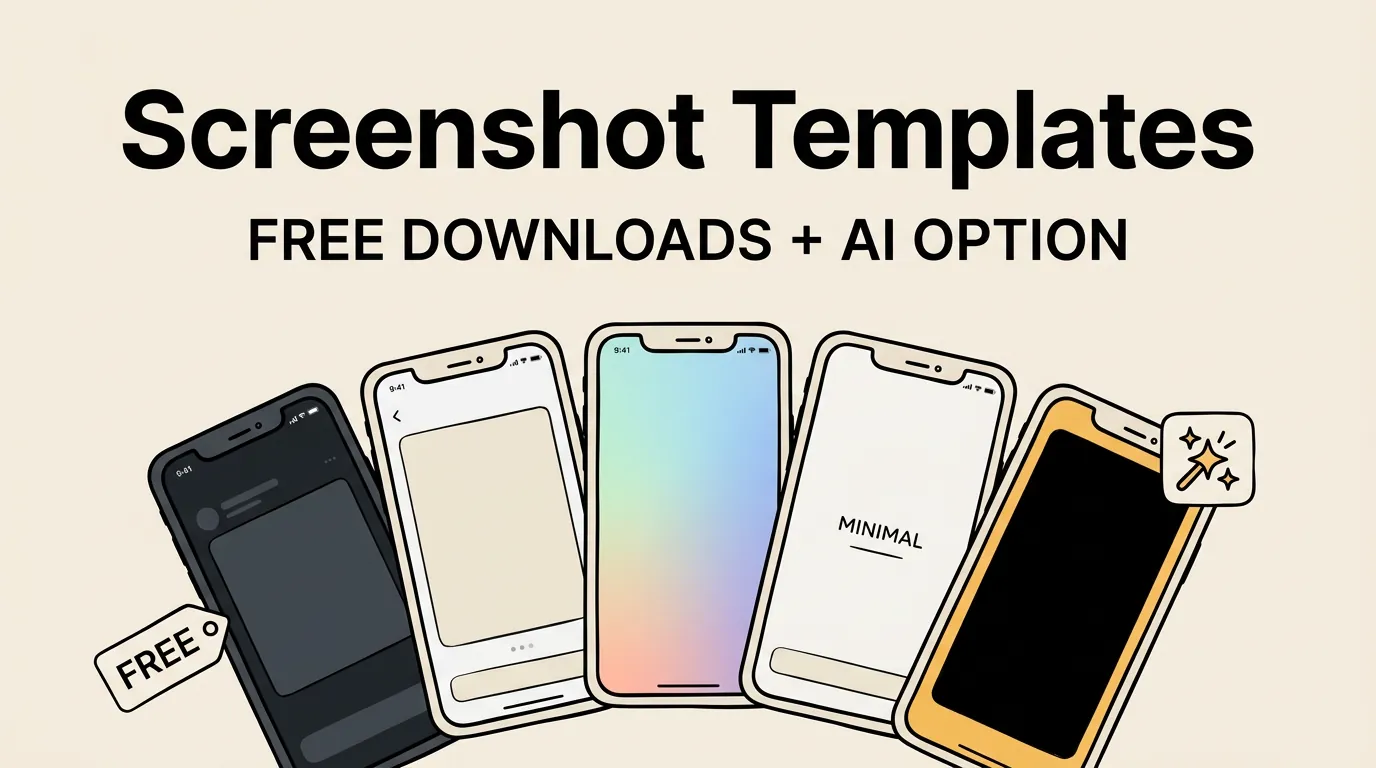
You don’t need to design App Store screenshots from a blank canvas. Free templates exist on Figma and Canva. AI tools go further and eliminate most of the manual work entirely.
Here’s a breakdown of your options, from fully manual (free, slow) to fully automated (fast, small cost).
Why Use a Template?
Starting from scratch means making dozens of design decisions: font, text size, text position, background color, gradient direction, device frame style, padding, shadow, spacing. Each one takes time. Each one can go wrong.
A template makes most of those decisions for you. What you get:
- Consistent layout. Caption position, spacing, and sizing are locked in.
- Professional typography. Font pairing that works at thumbnail size.
- Device frames. Properly sized and positioned.
- Color system. Change one color, everything updates.
- Correct export dimensions. No pixel guessing.
The tradeoff is creative freedom. But for developers who aren’t designers, that constraint is usually a good thing.
Free Figma Templates
Figma Community has the biggest selection of free App Store screenshot templates. Hundreds of options.
What to look for
Not all templates are equal. Check for:
- Correct dimensions. Must include 1260x2736 (iPhone 6.9”) and 2064x2752 (iPad 13”).
- Auto Layout. Makes swapping text and screenshots easier.
- Component variants. Different styles (dark/light, framed/frameless) as Figma components.
- Updated device frames. iPhone 16 Pro Max and iPhone Air frames, not iPhone 12.
The workflow
- Search “App Store screenshot template” on Figma Community.
- Duplicate the file to your workspace.
- Replace placeholder text with your captions.
- Drop in your app screenshots.
- Adjust colors to your brand.
- Export as PNG at 1x scale.
Time estimate: 4-8 hours for 6-8 screenshots in one language. Each additional language doubles the work since you need to duplicate frames and replace all text manually.
The limitations
Templates solve the design problem but nothing else. You still write captions yourself, research competitors yourself, translate yourself, and upload to App Store Connect yourself. For a single-language release with strong design skills, that’s fine. For localized releases, it gets painful fast.
Free Canva Templates
Canva has app mockup templates in its library. They’re accessible to non-designers thanks to Canva’s simple drag-and-drop interface.
The problem: Canva wasn’t built for this. No App Store size presets. No device frames. No multi-size export. You’ll spend a lot of time adapting a general-purpose template to App Store requirements.
Good for a quick one-off mockup. Not ideal for a production screenshot set.
Template Styles Explained
Regardless of what tool you use, screenshot templates fall into five categories:
| Style | Description | Best For |
|---|---|---|
| Clean Gradient | Two-tone gradient background, centered device, caption above or below | Most apps. Safest choice. |
| Bold Dark | Dark background, large bold caption as the dominant element | Premium and creative apps |
| Minimal Light | White or near-white background, thin typography, lots of whitespace | Utility apps, minimalist brands |
| Feature Focus | Split layout with feature callouts alongside the device | Apps with many selling points |
| Full Bleed | Screenshot fills the frame edge-to-edge, caption overlaid | Photo, video, design, and game apps |
The AI Alternative
Templates solve the design problem. They don’t solve the strategy problem. With a template, you still need to:
- Research what competitors are doing — see our best practices research
- Write captions that convert AND rank for keywords
- Figure out which colors work for your category
- Localize for international markets
- Export at the right dimensions
- Upload to App Store Connect
AI screenshot tools handle all of this. Screenshot Lab, for example:
| Manual (Figma template) | AI (Screenshot Lab) |
|---|---|
| Research competitors yourself | AI analyzes competitor screenshots |
| Write captions yourself | AI generates ASO-optimized captions |
| Pick colors yourself | Colors extracted from your app screenshots |
| Pick a template | 5 built-in templates, applied instantly |
| Localize by duplicating + translating | AI generates localized captions for 40+ languages |
| Export PNGs, upload manually | Direct upload to App Store Connect via API |
| 4-8 hours | 15-30 minutes |
How to Choose the Right Template
Match your category
| Category | Recommended Style |
|---|---|
| Productivity | Clean Gradient or Minimal Light |
| Finance | Clean Gradient or Bold Dark |
| Health & Fitness | Clean Gradient with bright colors |
| Social | Full Bleed or Clean Gradient |
| Photo & Video | Full Bleed |
| Games | Bold Dark or Full Bleed |
| Education | Minimal Light or Clean Gradient |
| Music | Bold Dark |
Match your brand
- Playful brand: Clean Gradient with bright, saturated colors
- Premium brand: Bold Dark with muted tones
- Minimalist brand: Minimal Light with one accent color
- Bold brand: Feature Focus with strong typography
Check your competitors first
Look at the top 5 apps in your category. If everyone uses dark backgrounds, you can follow the convention (it signals “I belong in this category”) or break it (a colorful background stands out). Be intentional either way.
Questions
What’s the best free template? Figma Community has the most variety. Search for templates updated in 2025-2026 with correct iPhone 6.9” dimensions. For non-designers, Screenshot Lab’s free tier gives you 3 screenshots with a built-in template. See our full tools comparison for more options.
Do I actually need a template? Not strictly. But without one, keeping fonts, colors, spacing, and layout consistent across 6-8 screenshots is harder than it sounds. Templates exist because consistency is hard.
Can I use one template for both iPhone and iPad? Most templates need separate layouts. Text sizes that work at 1260px wide don’t always work at 2064px wide. Purpose-built tools handle the resizing automatically.
Should I pay for a premium template? Usually not worth it. Free Figma templates are good, and dedicated tools give you templates plus AI features for less than most premium template packs cost.
Figma or Canva for screenshots? Figma. Canva wasn’t designed for this workflow and lacks App Store-specific features (size presets, device frames, multi-export). Figma’s Community templates are also more specialized and higher quality.