How to Create Professional App Store Screenshots on Mac
A step-by-step guide to creating App Store screenshots that convert. From competitor research to export, no design skills required.
Professional App Store screenshots in 6 steps: research what top competitors do, write benefit-focused captions, choose a template, customize your colors, localize for target markets, and export at the correct pixel size. The whole process takes 15-30 minutes with the right tool.
Here’s exactly how to do it.
What You Need Before Starting
Before you open any tool, gather three things:
- 6-8 app screenshots. Capture the screens that show your app’s core value. Use Xcode Simulator or take screenshots on a real device.
- Your app’s value propositions. What are the 3-5 things that make someone tap “Get”? Lead with your strongest feature.
- Competitor awareness. Open the App Store, search your category, and look at what the top 10 apps show in their screenshots. Our best practices research shows what the top 100 apps do.
That’s it. You don’t need Figma, Photoshop, or design skills.
Step 1: Research Your Competitors
The biggest mistake developers make? Creating screenshots in isolation. Your screenshots don’t exist in a vacuum. They show up next to competitors in search results, and users compare them side by side.
Open the App Store and search for your main keyword. For each of the top 5 results, write down:
- First screenshot: What’s the headline? What feature do they lead with?
- Caption style: Short phrases or full sentences? Top or bottom placement?
- Visual style: Dark backgrounds? Gradients? Device frames or floating screens?
- Number of screenshots: Most top apps use 6-8, but some use all 10.
- Localization: Are they showing localized screenshots in your market?
This takes 30-60 minutes if you do it manually. Screenshot Lab automates the whole thing: it finds your competitors, downloads their screenshots, runs OCR to extract captions, and uses AI to rank them by effectiveness. About 2 minutes.
Step 2: Write Captions That Convert (and Rank)
Your screenshot captions do double duty in 2026. They convince users to download and they improve your search ranking, because Apple’s OCR reads text in screenshots and indexes it as keywords.
Lead with a benefit, not a feature:
- Bad: “Advanced Task Management System”
- Good: “Get More Done in Half the Time”
Keep it short. 3-7 words is ideal. 10 words maximum. Longer captions become unreadable at thumbnail size.
Include your target keyword naturally. If you’re a habit tracker, “Build Habits That Actually Stick” includes “habits.” Apple’s OCR will index that.
Match the caption to the screenshot. “Track Your Progress” works with a progress chart. Not with a settings screen.
Caption sequence strategy
Your 6-8 screenshots should tell a story:
| Screenshot | Purpose | Example |
|---|---|---|
| #1 | Hook: your biggest value prop | ”Get More Done in Half the Time” |
| #2 | Core feature | ”Smart Task Prioritization” |
| #3 | What makes you different | ”AI Suggests Your Next Action” |
| #4 | Social proof or data | ”Trusted by 100K+ Users” |
| #5 | Secondary feature | ”Beautiful Widgets for Your Home Screen” |
| #6 | Closing | ”Start Free Today” |
Screenshot Lab generates these captions using AI that knows your app, your category, and your competitors’ keyword strategies. You can edit every caption, but the AI starting point is usually better than what most developers write from scratch.
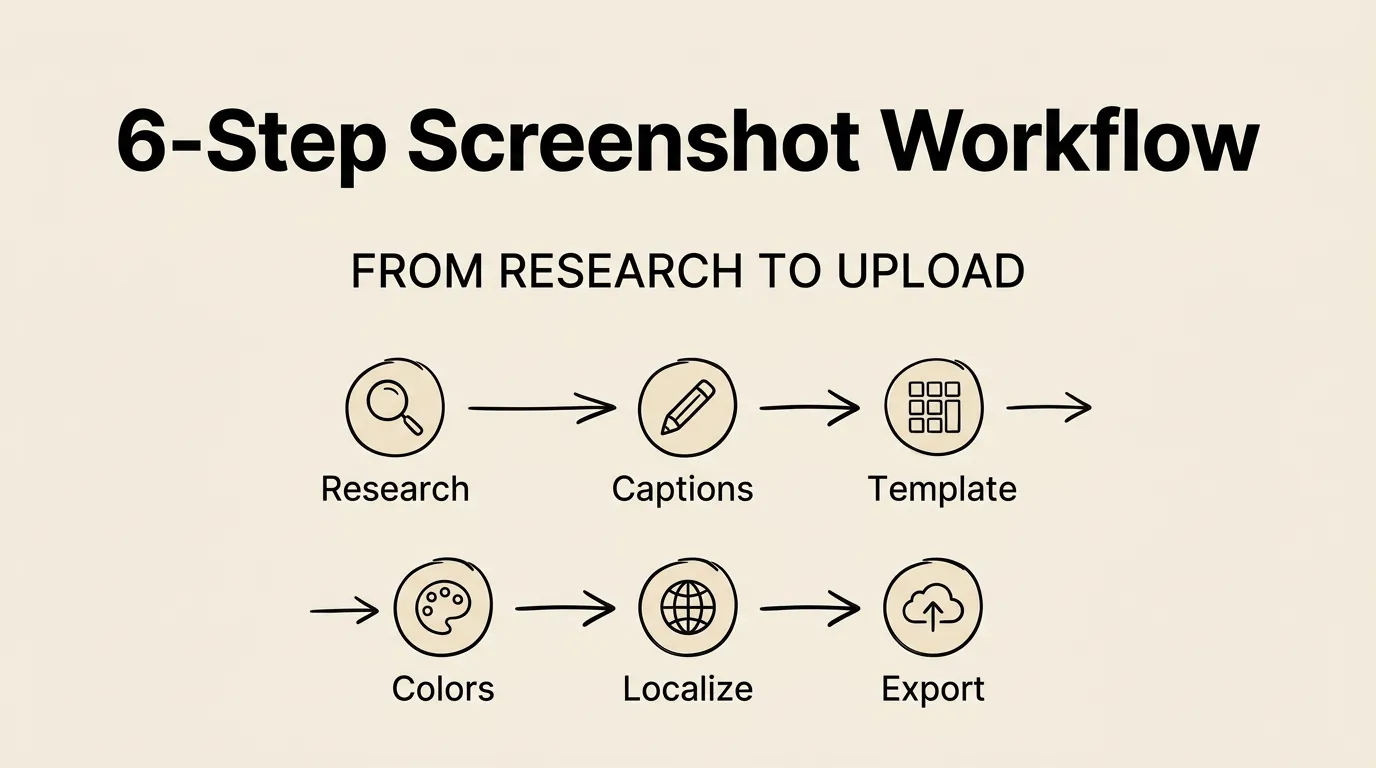
Step 3: Choose a Template
Templates determine where the device frame sits, where captions appear, and what the background looks like.
What makes a good template:
- Clean and uncluttered. The app screenshot should be the hero, not the background.
- Readable captions. Text must be legible at the small size shown in App Store search results.
- Consistent with your brand. Colors and style should match your app’s personality.
- Category-appropriate. Productivity apps need clean, minimal styles. Games need bold, energetic ones.
| Style | Best For |
|---|---|
| Clean Gradient | Most apps (safest, most versatile) |
| Bold Dark | Premium or pro apps |
| Minimal Light | Simple utility apps |
| Feature Focus | Feature-rich apps with lots of selling points |
| Full Bleed | Visual apps like photo editors or games |
Pick one template. Apply it to all your screenshots. Consistency matters more than any individual design choice. See our template guide for free options and an AI alternative.
Step 4: Customize Colors and Layout
When you drop app screenshots into Screenshot Lab, it extracts your dominant brand colors automatically using CoreImage analysis. These colors get applied to backgrounds, text, and accent elements.
You can override any color manually. But the auto-extracted palette is usually a solid starting point.
For each screenshot, you can adjust: caption text, caption position (top, bottom, overlay), device frame style, and screenshot crop.
Tips for better results
- Use your actual app screenshots. Don’t mock up fake data. Real content looks more trustworthy.
- Show your app in a realistic state. Have some data populated, not empty screens.
- Highlight the key action. If the screenshot shows a list, make sure the most interesting items are visible.
- Check contrast. White text on a light screenshot is invisible. Always test readability.
Step 5: Localize for Other Markets
Localization is the highest-ROI activity most developers skip entirely. Apps with localized screenshots see 25-40% higher conversion rates in non-English markets.
Priority markets by App Store revenue
| Priority | Markets | Languages |
|---|---|---|
| Tier 1 | US, Japan, UK, China | English, Japanese, Chinese (Simplified) |
| Tier 2 | Germany, France, South Korea, Canada | German, French, Korean |
| Tier 3 | Australia, Italy, Spain, Brazil | Portuguese (Brazil), Italian, Spanish |
Translation vs. adaptation
There’s a critical difference. Translation converts your English caption word-for-word. Adaptation rewrites the caption with keywords that users in that market actually search for.
Example for a fitness app in Japan:
- Translation: “Track Your Workouts” → “ワークアウトを記録する”
- Adaptation: “毎日の運動を簡単に管理” (emphasizes “daily” and “easy,” which Japanese users search for more)
Screenshot Lab does adaptation, not translation. For each language, it researches popular keywords in that market’s App Store and writes captions that include them naturally.
Step 6: Export or Upload to App Store Connect
Export as PNG (recommended)
- iPhone 6.9”: 1260 x 2736 pixels
- iPad 13”: 2064 x 2752 pixels
- Export at 1x scale (not 2x)
For the complete size reference including Watch, Mac, and TV, see our screenshot sizes guide.
Direct upload
Screenshot Lab uploads via the App Store Connect API. No more dragging files into the web interface.
To set it up, you need an App Store Connect API key (from Users and Access → Integrations) and your app’s Apple ID. The key is stored in your macOS Keychain.
Manual upload
If you export PNGs and upload manually: open App Store Connect, navigate to your app, scroll to Screenshots, select the device size, drag and drop your files in order. Repeat for each language.
For 6 screenshots across 5 languages, that’s 30 drag-and-drop operations per device size. Per update. It adds up fast.
Before and After
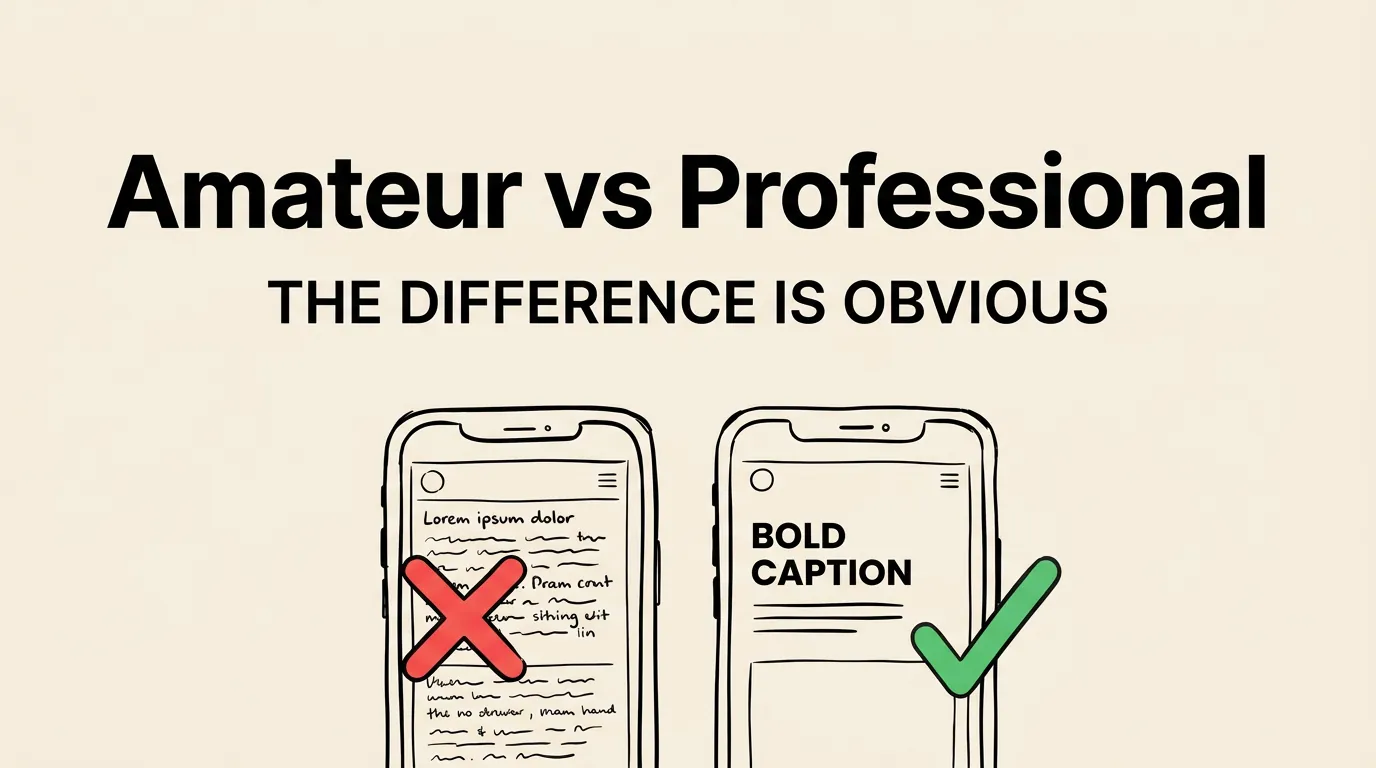
The difference between amateur and professional screenshots comes down to three things:
- Captions. Amateur screenshots have no captions or generic ones like “Beautiful Design.” Professional screenshots have benefit-focused, keyword-optimized captions.
- Consistency. Amateur screenshots use different styles across the set. Professional screenshots use one template, one color palette, one voice. Our design principles guide covers this in detail.
- Strategy. Amateur screenshots show random screens. Professional screenshots tell a story that addresses what users care about, in order of importance.
Common Questions
How long does this take? With Screenshot Lab, about 15-30 minutes including AI captions and localization. With Figma or Canva, plan for 4-8 hours per language.
Do I need a designer? No. That’s the whole point. Screenshot Lab’s templates and AI captions handle design and copywriting.
How many screenshots should I create? 6-8. The first 3 appear in search results. Screenshots 4-8 tell the rest of your story for users who tap into your listing.
Should I use device frames? Depends on your category. Most productivity and business apps use them. Games and creative apps often skip them. Check what your competitors do.
Can I reuse iPhone screenshots for iPad? App Store Connect will auto-scale them. But if your app has a different iPad layout, create separate iPad screenshots. Users notice stretched phone screenshots.