App Store Connect Guide: Screenshots, Metadata & Submission (2026)
A step-by-step walkthrough of App Store Connect for indie developers, covering app listing creation, screenshot uploads, metadata, and the review process.
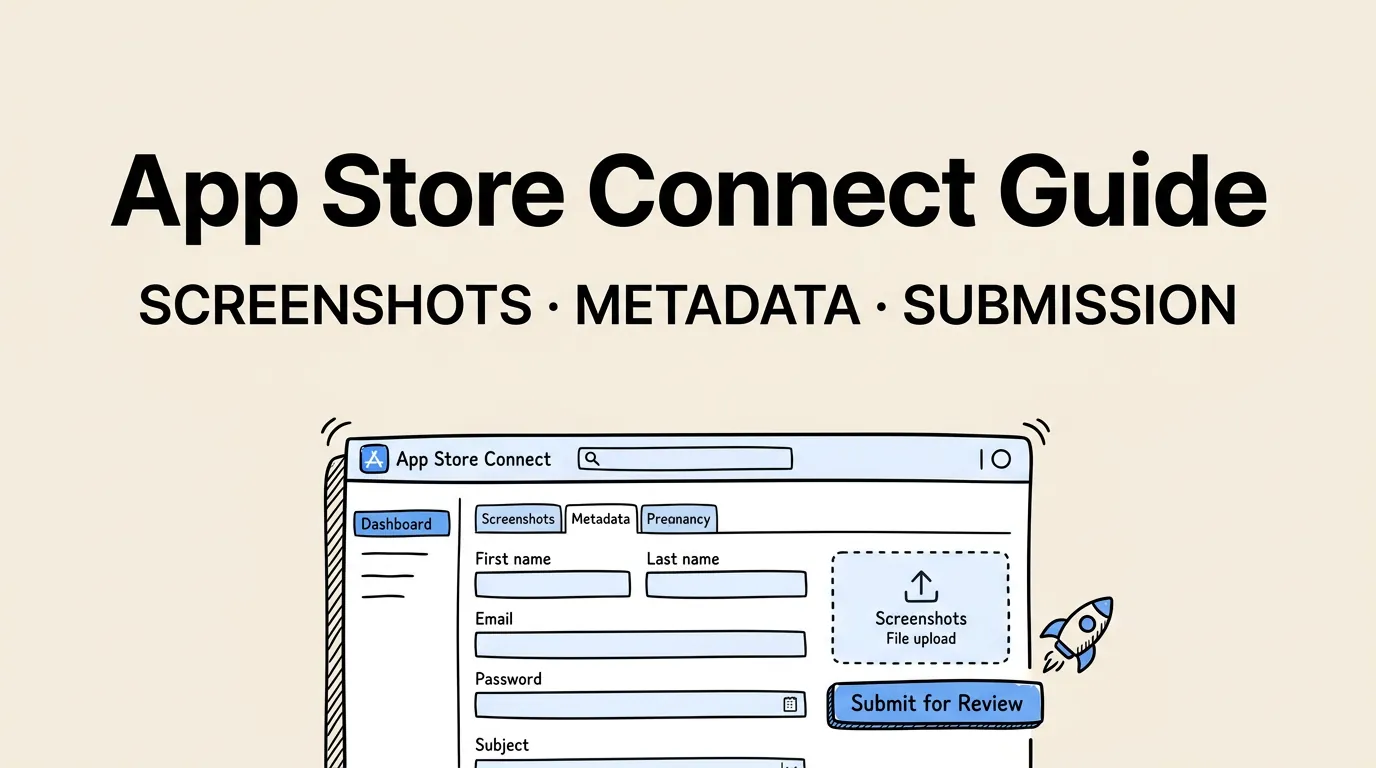
App Store Connect is where your app goes from code on your machine to a listing on the App Store. It is also one of the most confusing tools Apple has ever built. The interface has improved over the years, but it still manages to hide critical settings behind obscure menus and cryptic error messages.
This guide walks you through App Store Connect from start to finish. Whether you are submitting your first app or your fiftieth, this is the reference you will come back to every time you need to remember where Apple hid that one setting.
We cover creating your app listing, uploading screenshots and metadata, managing builds, submitting for review, and handling the post-submission process. Everything here reflects the 2026 version of App Store Connect.
Setting Up Your App Store Connect Account
Before you can do anything, you need an Apple Developer Program membership ($99/year). Once enrolled, you access App Store Connect at appstoreconnect.apple.com.
First-Time Setup Checklist
| Step | Where | Notes |
|---|---|---|
| Accept agreements | Agreements, Tax, and Banking | Required before you can sell or distribute |
| Set up banking | Agreements, Tax, and Banking | Required for paid apps/IAP |
| Complete tax forms | Agreements, Tax, and Banking | Required for all regions |
| Create App ID | Certificates, Identifiers & Profiles (developer.apple.com) | Must match your Xcode bundle identifier |
| Generate certificates | Certificates, Identifiers & Profiles | Distribution certificate required for submission |
Complete the banking and tax setup even if your app is free. You will need it eventually, and Apple will not approve paid features until it is done.
Creating Your App Listing
Navigate to “My Apps” and click the ”+” button to create a new app. Here is what you need to fill in:
Required Information
| Field | Character Limit | Tips |
|---|---|---|
| App name | 30 characters | Include primary keyword after brand name |
| Primary language | N/A | Your main development language |
| Bundle ID | N/A | Must match Xcode project exactly |
| SKU | N/A | Internal reference, can be anything unique |
| User access | N/A | Full Access or Limited (for teams) |
Your app name is reserved across the entire App Store once you create the listing. No other developer can use the exact same name. Choose wisely, as name changes are possible but can affect your search rankings temporarily.
Category Selection
Choose your primary and secondary categories carefully. Your primary category determines which category charts you appear in and influences the types of searches that surface your app.
| Category Decision | Impact |
|---|---|
| Primary category | Charts, search context, editorial consideration |
| Secondary category | Additional charts, broader search relevance |
| Subcategory (games only) | Specific genre charts |
Research where your competitors are categorized. If you are building a habit tracker, it could go in Productivity, Health & Fitness, or Lifestyle. Look at where the top apps in your space are listed and follow their lead unless you have a strong reason to differentiate.
The Screenshot Upload Workflow
Screenshots are the most time-consuming part of the submission process, and Apple has specific requirements that will reject your upload if not followed exactly.
Required Screenshot Sizes (2026)
| Device | Display Size | Resolution (Portrait) | Required? |
|---|---|---|---|
| iPhone 6.9” | iPhone 16 Pro Max | 1320 x 2868 | Yes (new in 2025) |
| iPhone 6.7” | iPhone 15 Pro Max | 1290 x 2796 | Yes |
| iPhone 6.5” | iPhone 14 Plus | 1284 x 2778 | Optional (6.7” can substitute) |
| iPhone 5.5” | iPhone 8 Plus | 1242 x 2208 | Required if supporting older devices |
| iPad Pro 13” | iPad Pro (M4) | 2064 x 2752 | Required if supporting iPad |
| iPad Pro 12.9” | iPad Pro (6th gen) | 2048 x 2732 | Required if supporting iPad |
You need a minimum of 1 screenshot per device class, but you can upload up to 10. For the full breakdown of every size and format requirement, see the screenshot sizes guide.
Upload Process
- Go to your app’s page in App Store Connect
- Select the version you are preparing
- Scroll to the “App Preview and Screenshots” section
- Select the device size tab
- Drag and drop your screenshots in order
- Repeat for each device size
Pro tip: If your screenshots are identical across iPhone sizes (same layout, just different resolutions), you only need to provide the largest size. App Store Connect will display a message offering to use them for smaller sizes.
Use Screenshot Lab to generate all required sizes from a single set of app captures. The tool exports screenshots at every required resolution with consistent device frames and captions.
Screenshot Localization
For each localization (language) you support, you need a separate set of screenshots. Navigate to the localization tab and upload translated screenshots for each language.
| Language | Priority | Why |
|---|---|---|
| English (US) | Required | Default for most markets |
| Japanese | High | 2nd largest App Store market |
| German | High | Largest European market |
| Chinese (Simplified) | High | Massive market, unique design expectations |
| French | Medium | Multiple French-speaking markets |
See the screenshot localization guide for best practices on translating screenshot captions and adapting layouts for different markets.
Metadata Fields Explained
Each metadata field has a specific purpose and impact on your app’s visibility and conversion. Here is every field you need to fill in:
Visible to Users
| Field | Limit | Search Impact | Conversion Impact |
|---|---|---|---|
| App name | 30 chars | Very High | High |
| Subtitle | 30 chars | High | High |
| Promotional text | 170 chars | None | Medium |
| Description | 4,000 chars | Debated (likely minimal) | Medium |
| What’s New | 4,000 chars | None | Low |
| Keywords | 100 chars | Very High | None (hidden) |
Promotional text is special: you can update it any time without submitting an app update. Use it for seasonal promotions, feature announcements, or limited-time offers.
Not Visible to Users (But Critical)
| Field | Purpose |
|---|---|
| Keywords | 100-character keyword field for search optimization |
| Support URL | Required, must be accessible |
| Marketing URL | Optional but recommended (your website) |
| Privacy Policy URL | Required for all apps |
| Copyright | Legal requirement |
| Contact Information | Required for review process |
| Demo Account | Required if your app has login |
| Notes for Review | Explain anything non-obvious to the reviewer |
The “Notes for Review” field is underused. If your app does anything unusual, has a non-obvious flow, or requires special setup, explain it here. Reviewers have limited time; make their job easier.
For comprehensive metadata optimization strategies, read the metadata optimization guide and the listing optimization guide.
Build Upload and TestFlight
Before you can submit for review, you need to upload a build. This happens through Xcode, Transporter, or the command line.
Uploading via Xcode
- Set your scheme to “Any iOS Device”
- Product > Archive
- In the Organizer, select your archive
- Click “Distribute App”
- Select “App Store Connect”
- Follow the prompts (signing, entitlements)
- Upload
The upload typically takes 5-15 minutes depending on app size and connection speed. After upload, the build goes through Apple’s automated processing (10-30 minutes), which checks for basic issues.
TestFlight Distribution
Before submitting to the App Store, distribute your build through TestFlight:
| TestFlight Type | Limit | Review Required | Best For |
|---|---|---|---|
| Internal testing | 100 testers | No | Development team |
| External testing | 10,000 testers | Yes (lightweight) | Beta testers, early adopters |
External TestFlight builds go through a lightweight review that is usually completed within 24 hours. This review is less strict than the full App Store review but can catch major issues early.
Common Build Issues
| Issue | Cause | Fix |
|---|---|---|
| ”Invalid Binary” | Missing required icons or launch images | Add all required assets in Xcode |
| ”Missing Privacy Manifest” | Required since 2024 for apps using tracked APIs | Add PrivacyInfo.xcprivacy file |
| ”Invalid Signing” | Provisioning profile mismatch | Regenerate profiles in developer portal |
| ”Missing Purpose String” | Using API without usage description | Add NSxxxUsageDescription to Info.plist |
Submission and Review Process
Once your build is uploaded, metadata is complete, and screenshots are in place, you are ready to submit.
Pre-Submission Checklist
Run through the complete review guidelines checklist before submitting. Key items:
- All metadata is accurate and matches the app’s actual functionality
- Screenshots show real, current app UI
- Privacy nutrition labels are complete and accurate
- Demo account credentials are provided (if applicable)
- All required device sizes have screenshots
Submission Options
| Option | When to Use |
|---|---|
| Manually release | When you want to control the exact release date |
| Automatically release | When you want to release as soon as approved |
| Release on specific date | When coordinating with a marketing campaign |
For launches, always choose “Manually release” so you control the timing. This lets you coordinate your launch strategy with the release.
Review Timeline
| Submission Type | Average Review Time | Range |
|---|---|---|
| New app (first submission) | 48-72 hours | 24 hours to 7 days |
| App update | 24-48 hours | 12 hours to 5 days |
| Bug fix (expedited) | 12-24 hours | If approved for expedited review |
| Resubmission after rejection | 24-48 hours | Often faster than initial review |
Managing Multiple Versions
As your app grows, you will manage multiple versions simultaneously: one live, one in review, and possibly one in development.
Version Numbering Best Practices
| Version Component | When to Increment | Example |
|---|---|---|
| Major (X.0.0) | Breaking changes, major redesigns | 2.0.0 |
| Minor (1.X.0) | New features, significant improvements | 1.5.0 |
| Patch (1.0.X) | Bug fixes, minor improvements | 1.0.3 |
| Build number | Every upload, always incrementing | 47 |
The build number must be unique and incrementing. Use integers (1, 2, 3) rather than matching your version number. Apple rejects builds with duplicate or non-incrementing build numbers.
Phased Release
Apple offers phased release, which rolls out your update to users gradually over 7 days:
| Day | Percentage of Users |
|---|---|
| Day 1 | 1% |
| Day 2 | 2% |
| Day 3 | 5% |
| Day 4 | 10% |
| Day 5 | 20% |
| Day 6 | 50% |
| Day 7 | 100% |
Phased release is excellent for catching issues early. If you discover a critical bug, you can pause the rollout, fix the issue, and resume with an updated build. Use this for every update unless you need an immediate full rollout.
App Store Connect Analytics
App Store Connect provides analytics that are essential for optimizing your listing over time.
Key Metrics to Monitor
| Metric | What It Tells You | Action If Low |
|---|---|---|
| Impressions | How many times your app appears in search/browse | Improve keywords, check category |
| Product page views | How many users visit your full listing | Improve icon and first screenshot |
| Conversion rate | Downloads divided by product page views | Improve screenshots, description, ratings |
| Units (downloads) | Actual installs | Improve all of the above |
| Proceeds | Revenue generated | Optimize pricing, conversion |
| Retention (day 1, 7, 28) | Users who return after install | Improve onboarding, core experience |
Monitor these weekly and correlate changes with your listing updates. When you update screenshots or keywords, check the impact 2-4 weeks later to see if it improved your metrics.
For a systematic approach to improving your numbers, see the conversion rate optimization guide.
FAQ
Can I create my App Store listing before my app is code-complete? Yes. You can create the listing, reserve your app name, write your metadata, and upload screenshots before uploading a build. This is recommended because it lets you iterate on your listing while still developing. The only thing you cannot do without a build is submit for review. Use this time to research keywords and prepare your screenshot set.
How do I update my screenshots without releasing a new version? You cannot update screenshots without a new version submission. Screenshots are tied to app versions in App Store Connect. However, you can update your promotional text (170 characters) at any time without a new version. For screenshot updates, prepare your new set, submit a minor version update with the new screenshots, and submit for review.
What happens if I miss a required screenshot size? App Store Connect will show an error when you try to submit for review. You must provide screenshots for every required device class that your app supports. If your app supports iPhone only, you need iPhone screenshots. If it supports iPad as well, you need both. Use the screenshot size checker to verify your screenshots meet all requirements.
Can I have different screenshots for different countries? Yes. App Store Connect lets you upload different screenshots for each localization. Navigate to the localization you want to customize and upload country-specific screenshots. This is particularly valuable for markets where design expectations differ significantly, such as Japan or China. See the localization guide for best practices.
How long should I wait before resubmitting after a rejection? Resubmit as soon as you have fixed the issue. There is no mandatory waiting period. However, make sure you actually address the reviewer’s feedback before resubmitting. Use the Resolution Center to communicate with the reviewer if the feedback is unclear. Multiple unresolved rejections for the same issue can result in longer review times for future submissions.